










Age Verification Request for your Account... 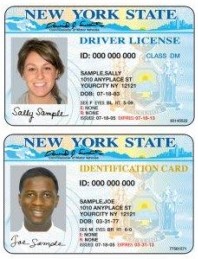
For new accounts, we need to verify your age to complete your order. This is a one-time process to verify your age.
Please take a picture of your State Issued Identification or Driver's License and send it via email to verify.me@jackbgoods.com.
NOTE: Your ID and the Order Info need to closely match. Please feel free to redact (cover) info you don't want to share.
When we receive your ID and verify your age, we will notify you via email that your account has been approved, and then immediately delete the picture ID from our system.
Your order will go to the top of the list to be processed for payment and shipment once age is verified...
Sending a picture via email is easy; The following are instructions for both iPhone and Android Phones...
To upload photos to an email from your phone, you can either share the photo directly from your image gallery or attach it from inside your email app.
Method 1: From the Photos/Gallery App (Recommended)
- Open your Photos (iPhone) or Google Photos/Gallery (Android) app.
- Find and tap on the photo you want to send.
- Tap the Share icon (a square with an upward arrow on iPhone, or three connected dots on Android).
- Select your email app (e.g., Mail or Gmail) from the list of icons.
- The photo will automatically attach to a new email. Add your recipient and subject, then hit Send.
Method 2: Method 2: From Inside Your Email AppOpen your email app (like Gmail, Outlook, or Yahoo Mail) and tap Compose to start a new message.
- Tap the Attach icon, which looks like a paperclip.Select Attach file or Insert from Photos.
- Select the image(s) from your device's storage and they will appear in the body of your email.
- Enter the recipient’s email address, type your message, and tap Send.
Need more Help? Use this Link: Wiki How to Email Pictures from a Cell Phone
Keeping kids safe is our goal,
We appreciate your help and your patronage...